
Canapii Knowledge Base

Getting Started

7
  • How to create an event with Canapii
  • What is the Master Console?
  • Virtual vs In-person event settings
  • Using Google, Facebook, Apple or LinkedIn to access Canapii
  • Why Hybrid? In-person and virtual event management
  • Organizational Analytics
  • Event Mobile App

Design

12
  • General Settings
    • How to Duplicate Events
    • How to Enable Event Features & Networking
    • Menu Bar Customization
    • Reporting Settings
    • How to change an Events Settings
    • Event mode & attendance
    • How to view your event page
    • Branding and customizing your event
    • Banners and page descriptions
  • Microsite
    • Building microsites
  • Welcome Video
    • Adding a welcome video to your event
  • Tabbed Contents
    • Tabbed Contents

People

24
  • Registration
    • Creating custom registration fields
    • Proxy registration
    • Custom welcome emails & registration questions
    • Setting a default language as part of event ticketing
    • Creating event tickets or attendee types first?
    • Sharing ticket links with attendees
    • Invite codes
    • Show personalized data across your event platform
    • Do I need to create both tickets and attendee types?
    • Custom Attributes
    • How to build and edit the registration experience
    • What are tickets and how to create one?
    • How to restrict event tickets to certain emails or domains
  • Attendees
    • Understanding more about attendee activity
    • Where to find registered attendees
    • How to find specific attendees or groups
    • Importing attendees into an event
    • Attendee types
  • RSVP
    • RSVP Management
  • Nominations
    • Using a ‘nominations’ approach for attendee registration
  • Admins
    • Is there an admin limit for events?
    • Adding admins to an event
    • Set as an admin but can’t ‘view’ the event?
    • Managing tech support for your event

Communications

6
  • Campaigns
    • How to verify your email domain or DKIM
    • Importing contacts into the campaign tool
    • How to use the Campaign Tool
  • Message Center
    • Message center
  • Notifications
    • Notifications
  • FAQs
    • Customizing your events FAQ page

Content

44
  • Sessions
    • Moderating the Q&A and Comments tabs during live sessions
    • Making a session private
    • Creating tags and tracks for your sessions
    • Live transcription & closed captions (live breakout sessions)
    • Sessions and How to Create Them
    • Social media sharing for sessions
    • How to identify watched sessions
    • Breakout rooms: How to add, manage, open and close
    • Assigning live breakout roles and explaining the different permissions: Host, Speaker and Viewer
    • Understanding attendee engagement between converted live breakout sessions – VOD sessions
    • How to join a session or meeting in Canapii
    • Preview videos for sessions
    • Highlighting sessions on your event homepage
    • Add downloadable resources & attachments within session page
    • Session reminders
    • Multi-language video options
    • What is Simulive?
    • How to enable share screen permissions on live breakout session when using Mac
    • Ensuring that session speakers are set as ‘session admins’
    • How to add date and time information to session tiles
    • Default, highlight & secondary banners
    • Session announcements
    • How to use Canapii’s video conferencing tool
    • VOD, Live streams, Live-breakouts and Simulive content types
    • Livestreaming
    • What happens when a session page is ‘enabled’?
    • What is the live breakout, whiteboard feature?
    • How to record breakout sessions
    • Guidelines for uploading session tiles
    • Canapii’s greenroom guide
    • ‘Raising hands’ during live breakout sessions
    • What links are supported in the ‘others’ content type?
    • How to upload an On-Demand video
    • Live breakouts – When can speakers and participants join a session?
    • The difference between Canapii conferencing, Zoom and Custom in Live Breakout Sessions
    • Adding a live badge to sessions
    • Understanding how many attendees are viewing live sessions
    • Setting default session settings & editing individual session details
  • Speakers
    • Creating and Managing Speaker Profiles
    • A speakers guide to using Canapii
  • Playlists
    • Creating and Managing Playlists
  • Polls
    • Creating and Managing Polls
  • Abstract
    • Abstract
  • Projects
    • How to Setup Projects

Networking

18
  • Chat
    • How to create a chat group as an organizer
    • Event interactive bar capabilities
    • Homepage chat
    • Utilizing the chat bar during an event
    • What is a chat group?
    • How organizers can contact & network with attendees
  • Meetings
    • Meeting options for attendees
    • How to restrict who can meet with who
    • Audio & visual trouble shooting for meetings
    • Meeting and chat notifications
    • How long are meetings?
    • Matchmaking
    • Understanding pre-defined meeting times
    • How to send out meeting reminders
    • Requesting and managing meetings on Canapii
    • How organizers can edit and view meetings
    • What is a meeting?
    • How to create meeting timeslots within the console

Sponsors

11
  • Creating dedicated sponsor zone representatives
  • Sponsor zone logos, banners and tags
  • What can sponsor admins do on their sponsor page?
  • Understanding the sponsor zone analytics
  • Sponsor zones
  • Building your sponsor zone
  • How to tier event sponsors
  • How to join a session from the Sponsor Zone
  • In-person events: Sponsor leads and Invite codes
  • Adding chat rooms to sponsor zones
  • How to add sponsors to an event

Onsite

11
  • What are Canapii’s in-person capabilities?
  • Badge
    • Badges
  • On-site Control Panel
    • In-person events: QR codes & scanning feature
    • In-person events: Meetings and Sessions
    • On-site Control Panel
  • Fligths
    • Approving and Declining Flights
    • How to manage flight information for in-person events
  • Floorplan
    • Floorplan
  • Hotel
    • How to manage hotels reservations in Canapii
  • Locations
    • In-person Events: Meeting & session locations
  • Venue
    • Venue

Community

4
  • Certification
    • Creating Certification
  • Gallery
    • The Community Gallery
  • Gamification
    • Gamification Setup
    • What is gamification?

Tools

19
  • Domain
    • How to get a custom web domain for an event
  • Integration
    • How does the Social Wall work?
    • Webhooks
    • Slack and Microsoft Teams Integration
    • Stripe
    • Cisco Webex Integration
    • Stripe integration – Test & live keys
    • Green Terp Integration
    • Snapbar & Pixiweb Integration
    • How to integrate Zoom into your platform
    • How to integrate a HyHyve space into your event
    • Interprefy
    • How to integrate Marketo with Canapii
    • Custom registration portal integration
  • Translations
    • Translating an event
    • Translated closed captions
    • Turning on translated closed captions during sessions
    • Translating comments & adjusting time zones
    • How to apply actions to comments & questions

Analytics

2
  • What event analytics are available?
  • Event analytics

Viewing your event

3
  • Event View: How to change Time zone
  • How to see the changes you’ve made to an event
  • Event agenda, my agenda & home agenda

FAQs

16
  • About Canapii
    • Frequently asked questions
    • Canapii’s Terms and Conditions
    • Canapii’s privacy policy
  • Sessions
    • FAQs about sessions
    • Can a live breakout or webinar meeting timeout if nobody joins?
    • Why am I unable to see sessions on the platform homepage?
  • Networking
    • FAQs about networking
  • Sponsors
    • FAQs about sponsors
  • Registration
    • FAQs about registration
  • Other FAQs
    • Can my team receive help emails from our attendees?
    • Canapii Support: Help and FAQ email
  • Pricing
    • Can I run a free trial using Canapii?
    • How should I determine the best package for my event requirements?
    • Is there a minimum term I must commit to for my plan?
    • Is there a limit to the number of events I can run in my plan package?
    • Can I upgrade or cancel my plan at any time?

Troubleshooting

10
  • How to reset your password
  • Trouble receiving verification code
  • Audio and video settings for meetings and live breakout sessions
  • Logging into Canapii without a password
  • Troubleshooting tips for display errors
  • How to adjust video quality
  • “Event not found” message
  • White screens & 404 error messages
  • Trouble receiving MFA sms code
  • Where to find technical support pre, live & post event

Pricing

5
  • Enterprise plan
  • Essential plan
  • Trial plan
  • Training Sessions for non-Enterprise plans
  • Professional plan
View Categories
  • Home
  • People
  • Nominations
  • Using a ‘nominations’ approach for attendee registration

Using a ‘nominations’ approach for attendee registration

Canapii
Updated on March 24, 2026

4 min read

Warning:

Using the nominations tool requires a professional package with dedicated account management.

Why use a nomination approach to attendee registration? #

If you like collecting attendee information via registration questions but also want to pre-import some of that information and keep registration open to only certain individuals then a nominations approach may be right for you.

What makes nominations different? #

Here is a quick overview of the three options admins have at their disposal to register users for their events.

  1. Ticket registration: This allows users to add their own information to their attendee profile and answer registrations via a dedicated ticket link. With this approach admins cannot pre-enter some of that information prior to the attendee starting their registration process.
  2. Import: This gives admins the power to quickly add attendees manually one by one on the fly or as a group to save time. With this approach all of the information for the attendee needs to be included in the CSV import sheet and cannot be added by the attendee at a later time.
  3. Nominations: Admins can pre-import certain attributes attached to an email address that are then brought over and added to any remaining registration questions that are being asked. Admins can decide if the pre-entered information is shown to the user (allowing them to make necessary changes) or if the nomination pre-imports are hidden from the registrant (only used for back end data tracking) . It is a bit like taken both the import and ticket approach and mixing them together.
Note:

Only the email addresses that have been pre-added will be able to complete registration.

How it works (from an attendee’s perspective) #

From an attendee’s perspective here are the steps they will have to follow to complete registration:

  1. Go to your event’s custom nomination homepage where they can login/complete registration
  2. Enter their email address in the registration section
  3. Receive and click on a custom link that is then emailed to them
  4. Follow the link sent to them to finish the remaining registration questions

How it works (from an admin’s perspective) #

How to set up nominations

  1. Contact your account manager to add this tool to your console. Once added it should appear under step 1 of the left hand side bar when viewing your event console.
  2. Select the nominations tool and select the settings option to begin creating the nomination attributes. This is similar to creating registration attributes for a ticket based approach.
    1. Use the nomination attributes tab to add in your nomination fields that you will then import with your attendee data. You can determine if these attributes are required for all attendees, what type of question they are and more.
    2. Use the branding tab to curate the look and feel of your registration/login page that attendees will use to register or login to your event platform.
    3. Use the domain and email whitelist tab to determine which email addresses or domains are allowed to register for your event.
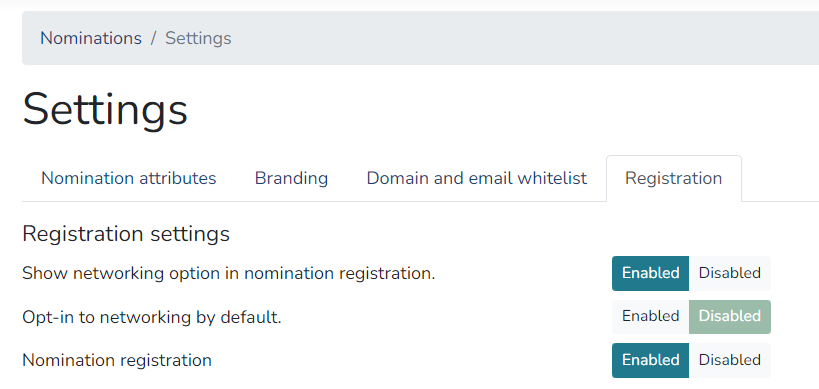
    4. Use the registration tab to manage the networking settings for your nomination registration. Enabling Show networking option will add a networking option when your nominated attendees register for the event; they will have the option to join or no in your event’s networking. Otherwise, you can enable Opt-in to networking by default which automatically adds all your nominated attendees in the networking by default.

      You can also enable or disable your Nomination registration. Note that disabling it will close it for your nominated attendees and they will receive the error message, “Sorry, registration is now closed.”
  3. Once you have your nomination fields created, you can then move back to the nomination‘s page and select the import field. 
    1. Upon selecting import you will see a modal where you can view a drop down import guide. This guide will tell you what information is required/optional and what format your CSV import file will need to have in order to pre-add attendee information.
    2. Once you have your CSV file completed, select choose file and move through the data check tool to ensure your data matches up with what the system can accept for each attribute.
  4. You can then share your nomination registration link, which can be found below the create button, to your nominated attendees so they can register for your event. 

Want to ask registrants additional questions? #

Depending on your needs, you may wish to also ask registrants additional questions outside of what you have pre-imported to their attendee record. If this is the case we will move to the registration tab to create these questions that attendees can fill out during their nomination registration workflow.

  1. Select the registration tab under step 1 of the left hand sidebar in your event console. Then select the attributes tab. 
  2. Enable the pre-made attributes you would like to use by selecting update next to each of the basic attributes you would like to use. You can also create your own custom attributes using the custom attribute maker at the bottom of the page, simply scroll down and select create. 
  3. Make sure when selecting or creating each of the attributes that you select ENABLE on the Link to Nomination field. This will add the registration attribute to your nomination workflow and will appear as an unanswered question that the user will have the option to answer once within the nomination registration path.

How is nominations different to ticket restrictions? #

Ticket restrictions allow administrators to upload specific emails into individual tickets, meaning only those emails can register. However, the nomination process allows you to upload an invitation list with additional attributes (such as company, department etc.). This means that attendees information can be auto-filled as part of registration, making for a quicker, automated process. Nominations also allows administrators to see who has registered vs. those that haven’t. 

Still have questions? We are always here to help. Send us an email to help@canapii.com and one of our support reps will assist you.

Using a ‘nominations’ approach for attendee registrationUsing a ‘nominations’ approach for attendee registration
Table of Contents
  • Why use a nomination approach to attendee registration?
  • What makes nominations different?
  • How it works (from an attendee's perspective)
  • How it works (from an admin's perspective)
  • Want to ask registrants additional questions?
  • How is nominations different to ticket restrictions?

Share This Article :

  • Facebook
  • X
  • LinkedIn
  • Pinterest

Was it helpful ?

  • Happy
  • Normal
  • Sad
Canapii

The event operations platform for conferences, exhibitions, and hybrid events.

info@canapii.com +44 118 228 1385

Product

  • Event platform
  • Badge printing
  • AI features
  • Integrations

Solutions

  • In-person events
  • Hybrid events
  • Conferences
  • Exhibitions

Resources

  • Blog
  • Case studies
  • Knowledge base
  • Product updates

Company

  • About us
  • Why Canapii
  • Careers
  • Pricing
  • Contact us
© 2026 Canapii. All rights reserved.
Privacy policy Terms & conditions