
Canapii Knowledge Base

Getting Started

7
  • How do I create an event on Canapii?
  • What is the Master Console in Canapii?
  • What is the difference between virtual and in-person event settings on Canapii?
  • How do I log in to Canapii using Google, Facebook, Apple or LinkedIn?
  • What are the benefits of hybrid events and why should you choose a hybrid format?
  • What is Organisational Analytics in Canapii and how do I use it?
  • What is the Canapii event mobile app and how do attendees use it?

Design

6
  • How do I brand and customise my Canapii event?
  • How do I duplicate an event on Canapii?
  • How do I customise the menu bar on my Canapii event?
  • How do I build an event microsite on Canapii?
  • How do I add a welcome video to my Canapii event?
  • How do I enable features and networking on my Canapii event?

People

6
  • How do I build and edit the registration experience on Canapii?
  • What are tickets on Canapii and how do I create one?
  • What are attendee types on Canapii and how do I use them?
  • How does RSVP management work on Canapii?
  • How do I add admins to a Canapii event?
  • How do I import attendees into a Canapii event?

Communications

3
  • How do I use the Canapii campaign tool to email attendees?
  • How do I set up notifications for attendees on Canapii?
  • How do I use the message centre on Canapii?

Content

4
  • How do I create sessions on Canapii?
  • What is Simulive on Canapii and how does it work?
  • How do I manage speakers on Canapii?
  • How do I create and manage polls on Canapii?

Networking

3
  • How does meeting scheduling work on Canapii?
  • How does AI matchmaking work on Canapii?
  • How do I set up chat groups on Canapii?

Sponsors

2
  • How do I add sponsors to a Canapii event?
  • How do I understand sponsor zone analytics on Canapii?

Onsite

2
  • What are Canapii’s in-person event capabilities?
  • How do Canapii badge printing kiosks work?

Community

1
  • What is gamification on Canapii and how does it work?

Tools

19
  • Domain
    • How to get a custom web domain for an event
  • Integration
    • How does the Social Wall work?
    • Webhooks
    • Slack and Microsoft Teams Integration
    • Stripe
    • Cisco Webex Integration
    • Stripe integration – Test & live keys
    • Green Terp Integration
    • Snapbar & Pixiweb Integration
    • How to integrate Zoom into your platform
    • How to integrate a HyHyve space into your event
    • Interprefy
    • How to integrate Marketo with Canapii
    • Custom registration portal integration
  • Translations
    • Translating an event
    • Translated closed captions
    • Turning on translated closed captions during sessions
    • Translating comments & adjusting time zones
    • How to apply actions to comments & questions

Analytics

2
  • What event analytics are available?
  • Event analytics

Viewing your event

3
  • Event View: How to change Time zone
  • How to see the changes you’ve made to an event
  • Event agenda, my agenda & home agenda

FAQs

50
  • About Canapii
    • What is Canapii?
    • What types of events does Canapii support?
    • How many companies use Canapii?
    • Is Canapii an award-winning platform?
  • Sessions
    • FAQs about sessions
    • Can a live breakout or webinar meeting timeout if nobody joins?
    • Why am I unable to see sessions on the platform homepage?
  • Networking
    • FAQs about networking
  • Sponsors
    • What is a sponsor zone on Canapii?
    • What content can be added to a sponsor zone?
    • Can sponsors access and manage their own zone?
    • What analytics are available for sponsor zones?
    • Does Canapii support tiered event sponsorship?
    • Can sponsor zones be restricted to specific attendees?
    • Can I add a chat area to a sponsor zone?
  • Registration and ticketing
    • Does Canapii handle event registration?
    • Does Canapii include a branded event microsite?
    • Does Canapii offer RSVP functionality?
    • Can Canapii manage invite-only or VIP sessions?
  • Other FAQs
    • Does Canapii work for in-person, virtual, and hybrid events?
    • How to set up FAQ admins and receive attendee help requests
    • How does email routing work for event help and FAQ requests?
    • Is Canapii ISO 27001 certified?
    • Is Canapii GDPR compliant?
    • Can Canapii be used for private or invite-only events?
  • Pricing
    • Is Canapii free to use?
    • Does Canapii charge per attendee?
    • How should I determine the best package for my event requirements?
    • Is there a minimum term I must commit to for my plan?
    • Is there a limit to the number of events I can run in my plan package?
    • Can I upgrade or cancel my plan at any time?
  • Support
    • Canapii Support: Help and FAQ email
    • Does Canapii offer 24/7 customer support?
    • What makes Canapii’s support different from other event platforms?
    • Does Canapii have a dedicated account manager?
  • Platform and features
    • What features does Canapii include?
    • Does Canapii have a mobile app?
    • Does Canapii offer sponsor and exhibitor features?
    • Does Canapii integrate with other platforms?
    • What networking features does Canapii offer?
    • Does Canapii offer event gamification?
    • Can Canapii handle hybrid events?
    • Does Canapii support live streaming?
    • What is Canapii’s badge printing solution?
    • Does Canapii offer AI-powered live translation?
    • How many languages does Canapii support?
    • What analytics does Canapii provide?
  • Getting started
    • Does Canapii provide onboarding support?
    • How do I get started with Canapii?
    • How long does it take to set up an event on Canapii?

Troubleshooting

10
  • How to reset your password
  • Trouble receiving verification code
  • Audio and video settings for meetings and live breakout sessions
  • Logging into Canapii without a password
  • Troubleshooting tips for display errors
  • How to adjust video quality
  • “Event not found” message
  • White screens & 404 error messages
  • Trouble receiving MFA sms code
  • Where to find technical support pre, live & post event

Pricing

5
  • Enterprise plan
  • Essential plan
  • Trial plan
  • Training Sessions for non-Enterprise plans
  • Professional plan
View Categories
  • Home
  • Tools
  • Translated closed captions

Translated closed captions

Canapii
Updated on March 24, 2026

3 min read

Whether you want to use our powerful AI tool to quickly generate closed captions or review and update your session’s closed captions, Canapii’ s transcription tool will help you get the job done! 

Find the list of languages below which can be transcribed and generated to captions, or jump to the step by step instructions here.

Transcribing languages

Step 1: Canapii will first transcribe the pre-recorded MP4 video (within the assets tab) in US English or one of the following 30 languages:

Arabic (gulf) English  (Scottish) German Japanese Russian
Arabic (modern standard) English  (Welsh) German (Swiss) Korean Spanish
Dutch English (Australian) Hebrew Malay Spanish (US)
English  (British) Farsi Persian Indian Hindi Mandarin Chinese (mainland) Tamil
English  (Indian) French Indonesian Portuguese Telegu
English  (Irish) French Canadian Italian Portuguese (Brazilian) Turkish

Languages available to generate CCs

Step 2: Using the transcribed video (as per step 1) you can then generate closed captions in one of the 72 languages below:

Afrikaans Estonian Kannada Sinhala
Albanian Farsi (Persian) Kazakh Slovak
Amharic Finnish Korean Slovenian
Arabic French Latvian Somali
Armenian French (Canadian) Lithuanian Spanish (Spain)
Azerbaijani Georgian Macedonian Spanish (Mexico)
Bengali German Malay Swahili
Bosnian Greek Malayalam Swedish
Bulgarian Gujarati Maltese Tagalog
Catalan Haitian Creole Mongolian Tamil
Chinese (simplified) Hausa Norwegian Telugu
Chinese (traditional) Hebrew Persian Thai
Croatian Hindi Pashto Turkish
Czech Hungarian Polish Ukrainian
Danish Icelandic Portuguese Urdu
Dari Indonesian Romanian Uzbek
Dutch Italian Russian Vietnamese
English Japanese Serbian Welsh

How to generate translated Closed Captions for individual sessions

  • Firstly go into sessions within step 2 of the event console and locate either your VOD or simulive session.
Note:

Closed captions are not available to trial or free plans.

  • Once you’ve selected the session, scroll to the bottom of the session’s settings page until you find the assets tab
    This is where you’re able to upload the MP4 video asset for the session but also where you’re able to transcribe and generate the closed captions
  • Upload the video asset by clicking the gear icon next to the video file option
  • Once the MP4 video has uploaded, locate the transcribe button below. Select this and choose the language that is being spoken within the video

Don’t close the page as this step may take several minutes depending on the size of your file. 

  • Once the file has finished transcribing, you will find the new language option appear below the closed captions section.
Note:

If you would like to edit or review the transcribed closed captions you can do so by selecting the gear icon next to the transcribed language.
The download and upload options enable you to download a copy of the transcription, make edits and re-upload the custom closed captions. Be careful not to edit the time stamps in the transcription file.

Now that the video has transcribed, you can use the transcription to generate, translated closed captions:

  • Select the generate button (this will open a new pop up window)
  • Select the transcription from the select source caption drop down
  • From the caption to generate drop down, select the desired translation (language)
  • Press submit
  • Once the newly generated closed caption language has finished processing, you will see it appear alongside the other language options

Applying Closed Captions to multiple sessions

Admins are also able to generate closed captions for multiple sessions, providing that their translation requirements are the same.

You can do this by firstly selecting the source language. As per the above steps, go into each of the individual sessions, scroll to the bottom of the page & select Transcribe. Here you’ll select the source language which the transcriptions will be generated from. Once this initial step is completed, follow the next:

1. Go into Sessions.
2. With the tick boxes, select the multiple sessions which require generated closed captions.
3. Now that you’ve chosen the sessions, click on Actions, from the list find Generate and select accordingly. 
4. Select the already generated Source language i.e. US English & then select the languages which the closed captions should be applied to. Lastly select Save. 
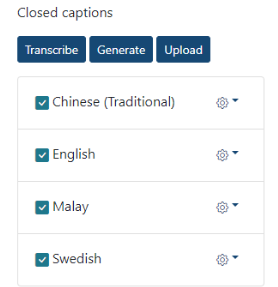
5. To ensure that the closed captions have been applied, go into each session, scroll to the bottom of the page and here you’ll find a list of the generated closed captions:
How do attendees select their desired closed captions within a session?

Within a video on demand or simulive session (providing that captions have been generated for a session), users will see a small cc option in the lower right corner of the player window. Selecting this will open the full list of closed captions that have been generated.

What about closed captions or transcriptions for livestream and live breakout sessions?

Typically, closed captions for live streams are fed through the livestream provider. Whether you are using Vimeo or a production company these will be shown in the player window as described above as long as they are included with the feed.

Our integrated video conferencing platform for live breakout sessions and meetings, offer a live transcription option can be enabled from the session’s settings page. At the time of this release the available languages for this type of transcription are:

English (Australian) French German Korean
English (British) French Canadian Portuguese Mandarin Chinese
English (US) Italian Japanese Spanish (Mexico)
Table of Contents
  • Transcribing languages
  • Languages available to generate CCs
  • How to generate translated Closed Captions for individual sessions
  • Applying Closed Captions to multiple sessions
  • How do attendees select their desired closed captions within a session?
  • What about closed captions or transcriptions for livestream and live breakout sessions?

Share This Article :

  • Facebook
  • X
  • LinkedIn

Was it helpful ?

  • Happy
  • Normal
  • Sad
Canapii

The award-winning event management platform for virtual, hybrid and in-person events. The only platform with genuine 24/7 human support.

info@canapii.com +44 118 228 1385

Product

  • Event platform
  • Badge printing
  • AI features
  • Integrations

Solutions

  • In-person events
  • Hybrid events
  • Conferences
  • Exhibitions

Resources

  • Blog
  • Case studies
  • Knowledge base
  • Product updates

Company

  • About us
  • Why Canapii
  • Careers
  • Pricing
  • Contact us
© 2026 Canapii. All rights reserved.
Privacy policy Terms & conditions