

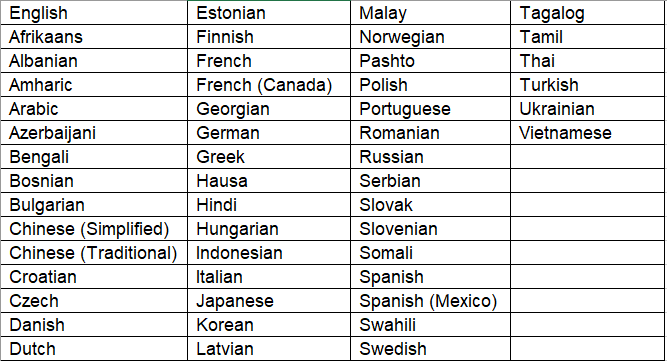
Attendees of an event simply need to locate the language icon  which can be found within the top right-hand side of the menu bar. Clicking this icon will reveal a drop down menu of languages, select accordingly.
Languages available:
Note:
Your event may also support translated subtitles in sessions. If this is available, simply click on the ‘CC‘ (closed caption) icon in the player window of a session and choose a language.
You are also able to edit the translations at the Translation tab and have the ability to export translations for a language. The CSV file should include English source, translated text, the URL the text is seen and if required unique identifier for the text.