

Showcase your Venue and allow attendees to have an overview of what to expect in your in-person events!
To add in your venue details, choose Onsite on the left side menu bar and then select Venue.
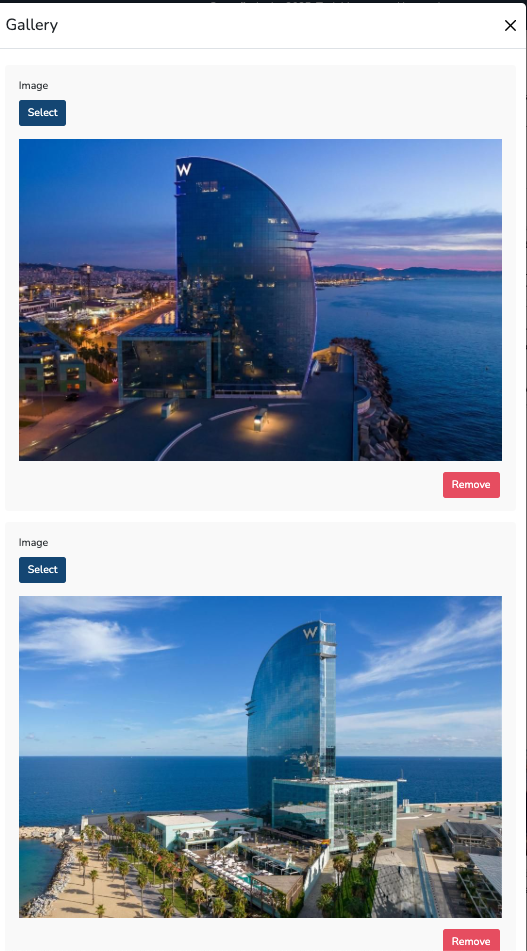
Gallery #
The perfect feature to upload photos of your Venue. Uploading multiple photos will be shown by default in a photo carousel.
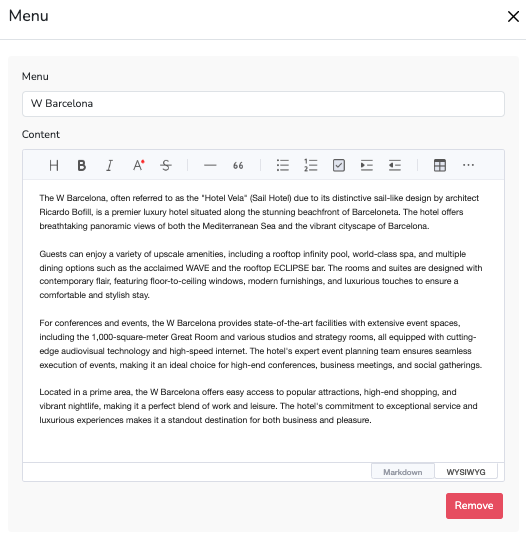
Menu #
Provide details about your venue, FAQs, reminders, infographics, and the like by creating menus related to your area and event.
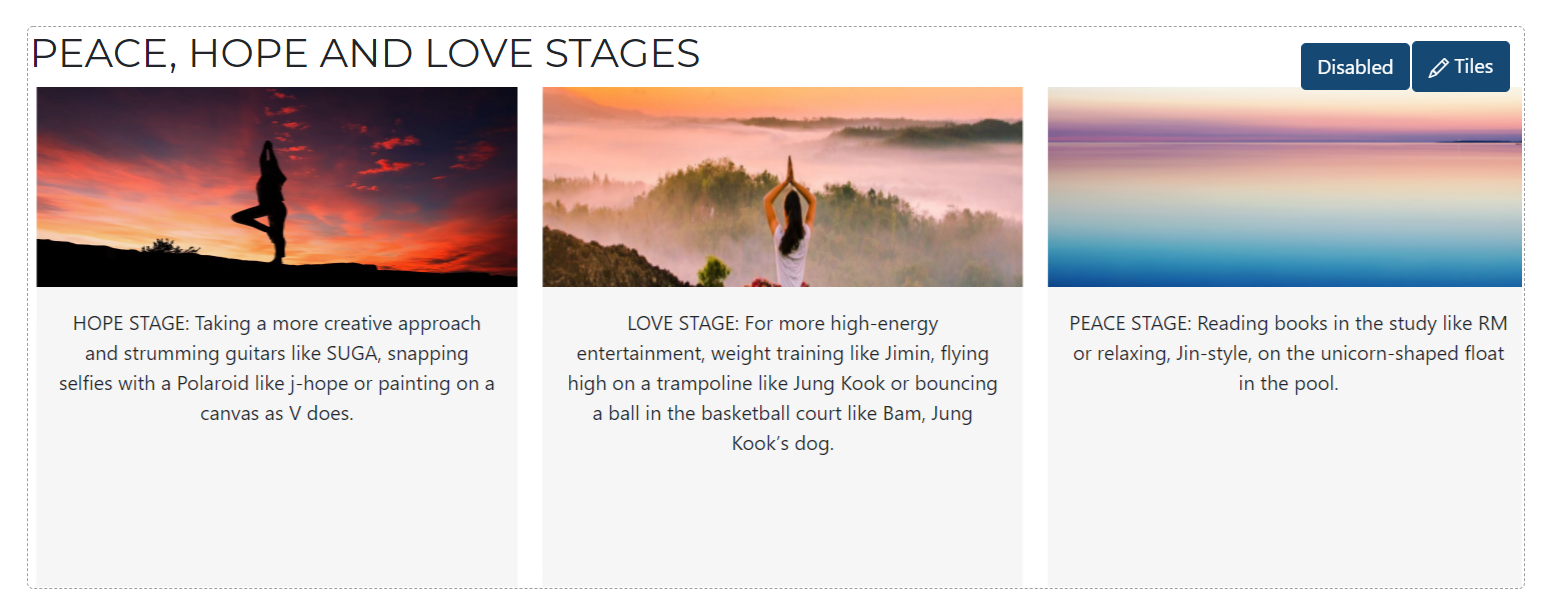
Tiles #
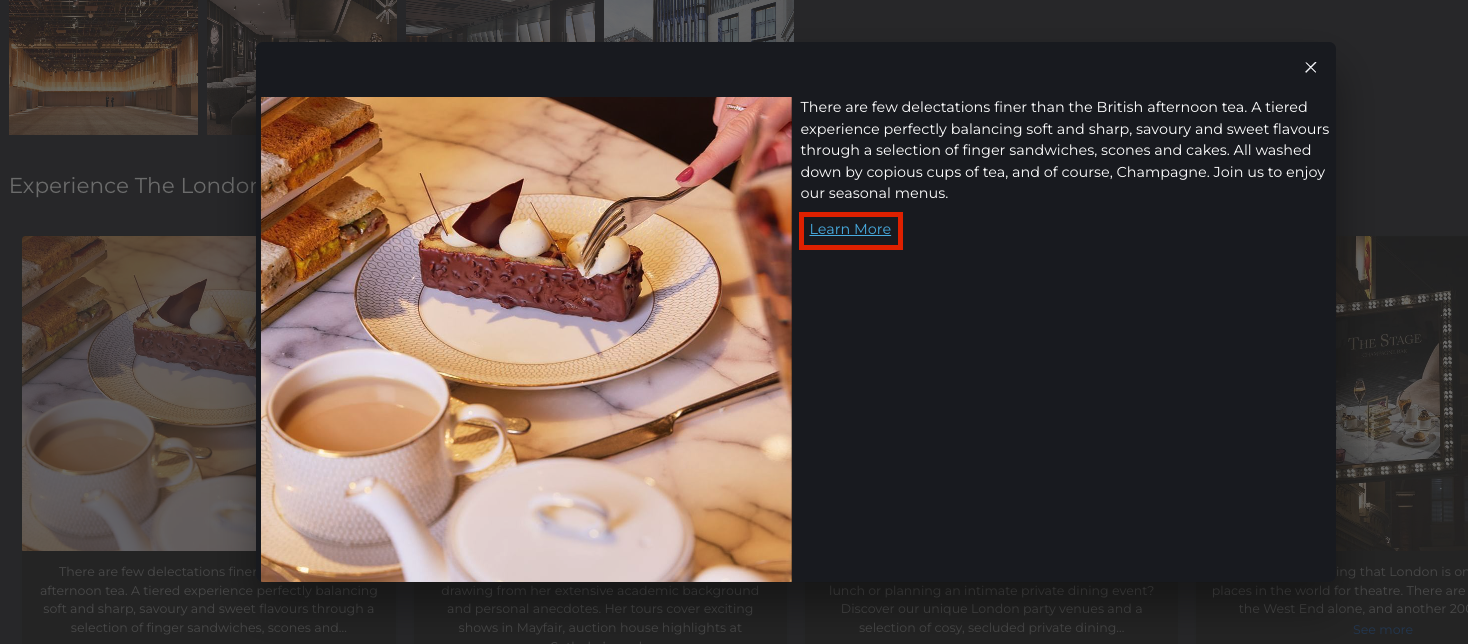
This feature allows you to upload photos along with a brief description. If your photo or description is sourced from a website or article, you can also include a link. Attendees who click the “Learn More” hyperlink will be redirected to the page you’ve linked.
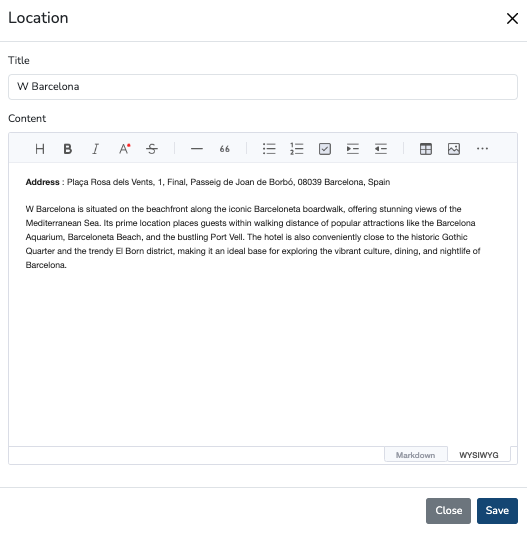
Location #
A space for you to input your Venue address and essential information.
Map #
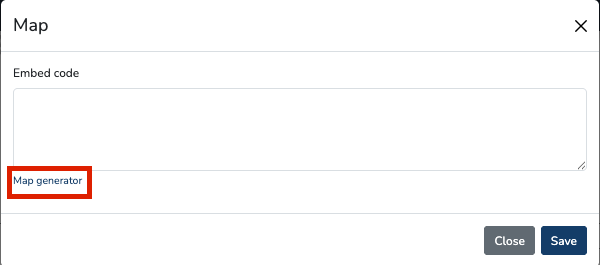
Have the option to embed a map of your exact location via Google Maps generator. To do this:
-
Hover over the Map section and click the pencil icon to edit.
-
Click the Map Generator located below the embed code field.
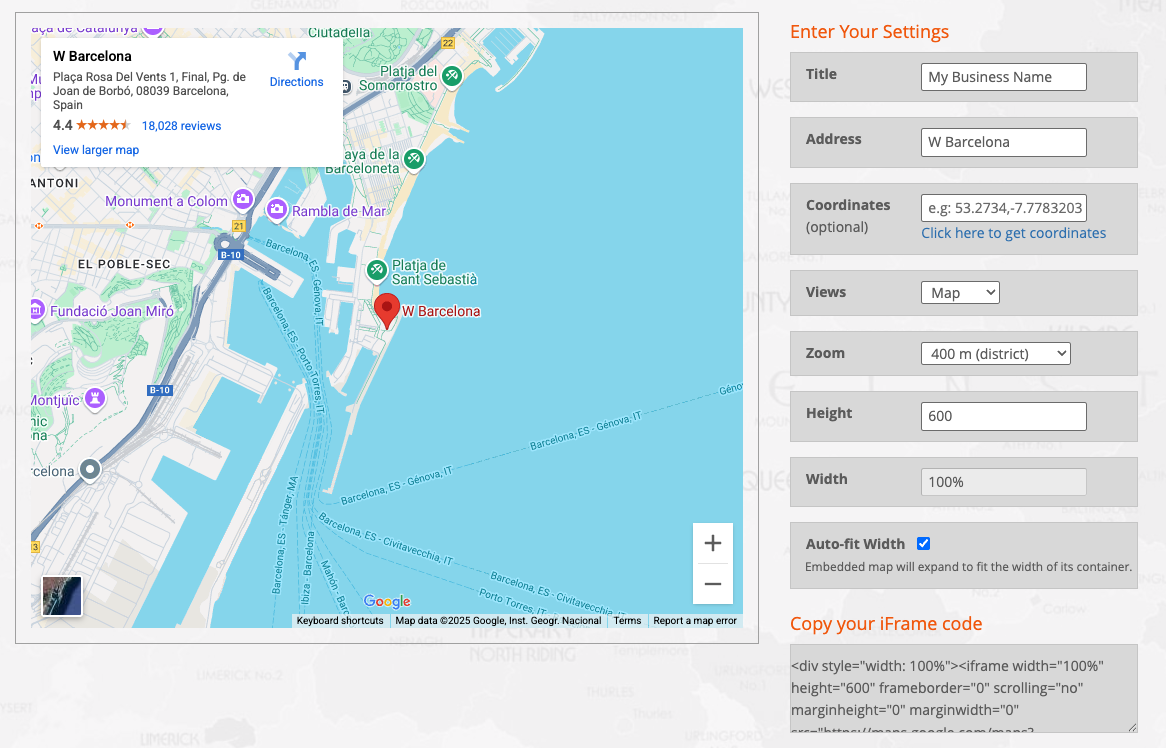
- You’ll be redirected to an external site where you can enter the location in the Address field, adjust settings like zoom, height, width, and more.
- Once you’re done, copy the iFrame code from the lower right corner of the page.
- Return to your console page, paste the iFrame code into the Embed Code field, and click Save.
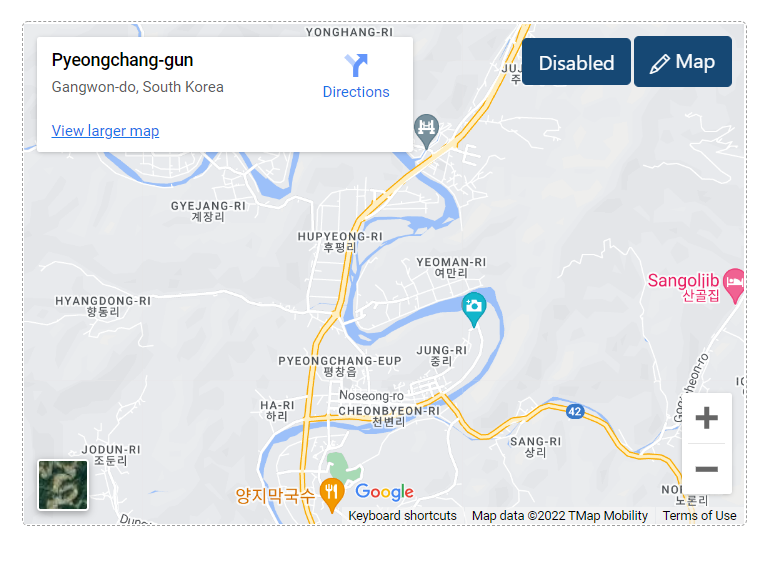
Note: You can easily disable any of the features mentioned above. To ensure a section appears on the front end, make sure it is set to “Enabled.”